

Introduction
June 19 sees day 2 of Workplace Ninjas UK 2025 kick off in Edinburgh. Another early start so glad to grab a coffee and a pastry before the keynote kickoff. Slightly quieter today, but still a strong showing of attendees
Day 2 kicked off with the Keynote from Rod Trent around Safeguarding Tomorrow – The Microsoft Security First Initiative
Content
Evolution of the Windows Client
Day 2 Part 2
Keynote Day 2 – Safeguarding Tomorrow – The Microsoft Security First Initiative
The Microsoft Security First Initiative (SFI) was first launched in November 2023 and is a multi-year initiative and commitment that advances the way Microsoft design, build, test and deploy solutions to the highest standard for security. And every employee and developer at Microsoft are part of that commitment and take on that responsibility to make products and solutions that they are working on secure from the beginning.
For far to long, security in Microsoft products was an afterthought and most features were enabled at configuration rather than now that most features are OFF by design with you able to configure the security stature that you want.
And a year in a small issue with CrowdStrike made Microsoft sit up, wake up and realise that more effort was needed to secure not just the core OS, but all of its interwoven products.
Along with this, its increasing the cyber security of everything that Microsoft does to ensure they help us protect our sensitive information and to build our trust with Microsoft.
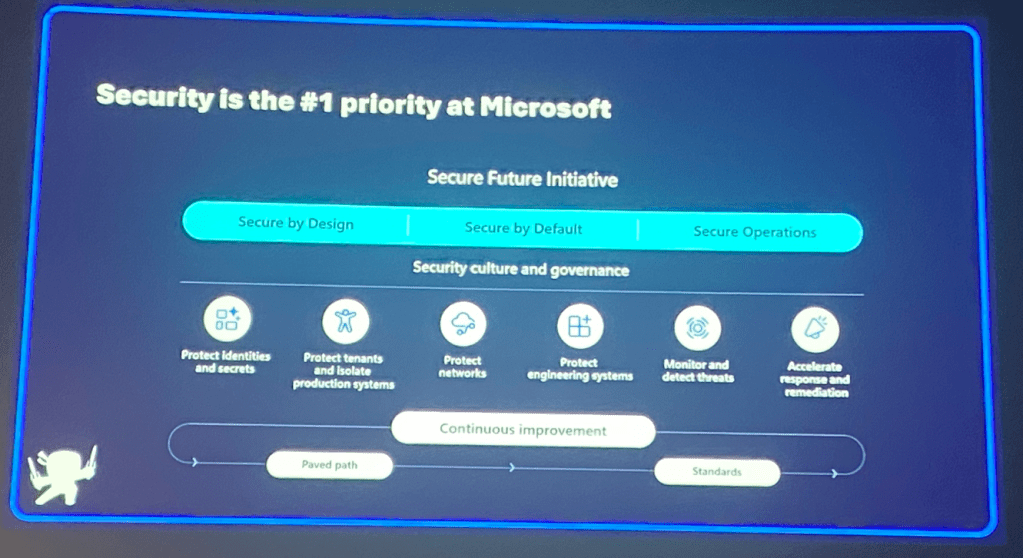
The Security First Initiative also includes developers to bring their mindsight to create secure code and to think “Security” in everything they do.
Microsoft are investing in security with the team of engineers dedicated to security up from 34,000 to 127,000 and the team have been able to protect against $4 billion (yes – that’s a B) in fraud attempts by blocking these attempts.
Microsoft report about their progress and updates within the Security First initiative on a quarterly basis. The latest report was in April and can be read here.
The main vector of attack is around the identity. In the past the attack boundary used to be the office, as that’s where all the computers and mainframes lived. Forward to today, and people can access work resources from the office, home, on a train, on the beach in Bali using both corporate and personal devices. This pushes that boundary away from a physical building, out to protecting the identity rather than the device. Don’t get me wrong, we need to protect the device as well, but its now the identity that is at high risk.
Heres a statistic. 99% of identity attacks are password attacks. But these can be thwarted by using strong authentication methods such as Multi Factor, authenticator, FIDO 2 and passwordless
The key components to consider as simple shifts in attitude and technology give the biggest impact:
- Identity and Authentication using EntraID.
We can authenticate people and check where they are coming from and to ensure that they are allowed to access the resources they need with the appropriate permissions based on where and on what they are coming from. - Data Security with Purview
Data protection in the cloud addressing vulnerabilities to secure data and ensuring a secure cloud environment for users to connect to and share and access data and resources and the ability to limit access to sensitive data. This is especially important in the age of Copilot as we don’t want sensitive payroll data being available to everyone in the firm.
A new data investigation tool from Microsoft known as Microsoft Data Security Investigation tool. This is now in public preview and allows security and data teams to identify important data and collaboration to reduce risk. Microsoft Data Security Investigation, part of Microsoft Purview, is an AI-powered tool that helps cybersecurity teams swiftly identify, analyze, and mitigate data security incidents by uncovering sensitive data risks and enabling collaborative investigations across systems and stakeholders.
To Find out more and to join the public preview visit https://aka.ms/PurviewDSI
Enough of the plug, lets carry on!
- Advanced Threat Protection with Defender
This is a real time detection for threats and implemnets proactive safeguarding to data, resource and systems.
Microsoft analyses 78 Trillion (yup folks that’s T this time) threat signals everyday which keeps the Microsoft ecosystem secure - Regular Patching
Addresses vulnerabilities
Improves stability and performance
Failing to patch leads to data breaches
Ensure compliance with security standards - Zero Trust
This is the philosophy that no user or device can be inherently trusted. Each user and device has to undergo verification to gain access and trust using Multi Factor, device compliance and Conditional access
So whats the future for security and Microsoft?
- AI + Machine learning
We can use AI to identify patterns in data to identify potential breaches
Make security measures more proactive allowing organisations to response to threats more swiftly
- Continual learnings
For example, a security issue with Copilot was identified by the team and resolved it before the security issue became public knowledge. This used all of the internal Microsoft dectection indicators to find this. Microsoft have an internal Red team and actively look for issues.
- Collaboration with global partners
Working with Crowdstrike and other vendors to standardize on the security data standards and taxominy similar to how information held on CVE is now the same across all vendors. By sharing and collaborating with each other it ensures that we can help each other.
- Use the Security First Initiative reports as an idea book on things to potentially implement. 5 must-do actions from the latest report include:
Adopt Phishing-Resistant Multi-Factor Authentication (MFA)
Transition to FIDO2 security keys, Windows Hello, or Authenticator app with number matching to reduce identity-based attacks.
Implement Zero Trust Architecture
Apply identity verification, least privilege access, and micro-segmentation to secure your environment.
Secure Your Development Lifecycle
Integrate DevSecOps practices such as automated code scanning, threat modeling, and secure-by-default configurations.
Inventory and Monitor All Assets
Use tools to maintain real-time asset inventory and monitor for anomalies and vulnerabilities.
Train and Empower Your Workforce
Launch a security awareness program with phishing simulations and role-specific training.
Evolution of the Windows Client – Traditional Windows vs Windows 365
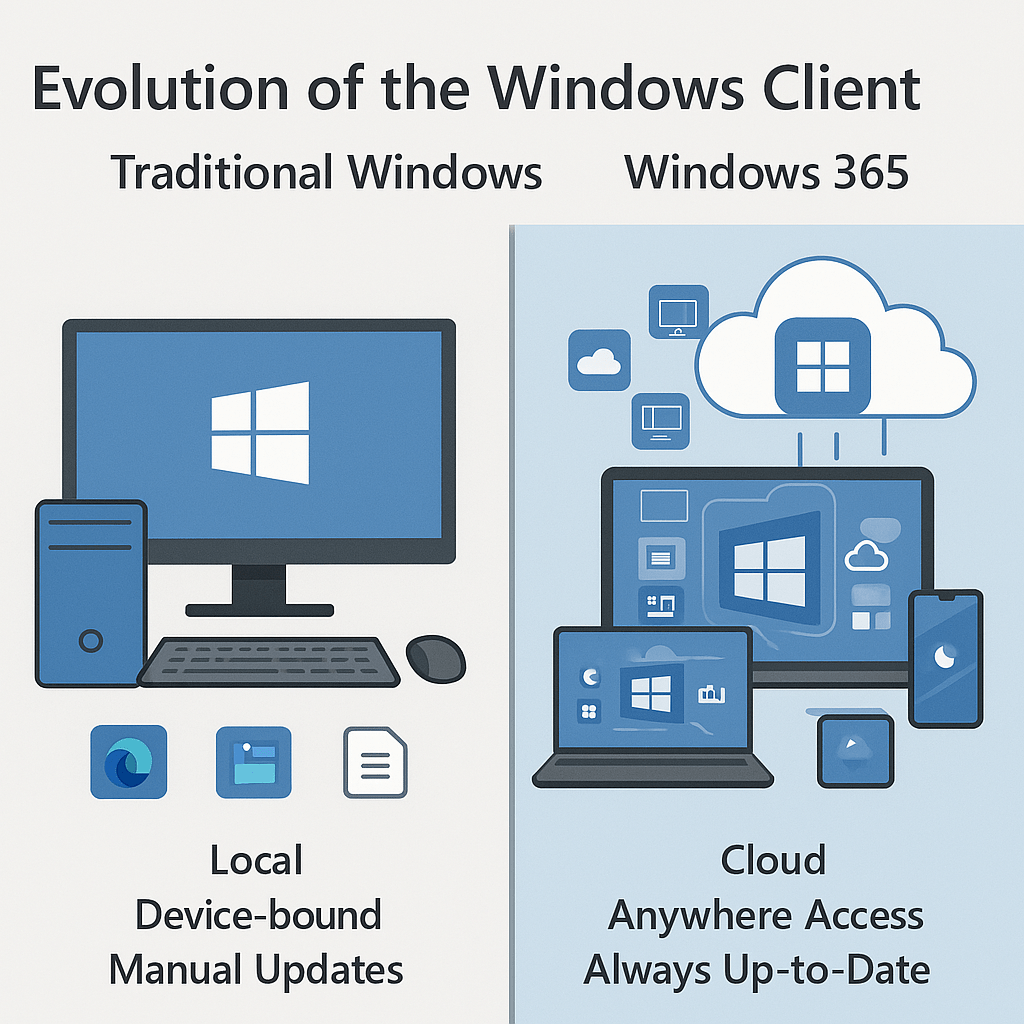
There have been many changes to the desktop compute. From the standalone unconnected, to thin client to networked devices to now where users demand the ability to work anywhere, whenever and on whatever
Included in this is the revolution of cloud computing meaning we can start to think about how users can connect and with what from where.
With Windows 365, we now have the ability to stream a full Windows desktop, with the same Windows user experience from any device be it a Mac, ios or Android or even to the extreme of your LG TV and Meta Quest 3. This can all give you that business app access running in Windows without sweating.
The benefits of moving with Windows 365:
- Integrates into the current business patching process – it’s the same Windows patches
- Updates to the Windows 365 platform are automatically updated (as long as IT Admin has implemented them)
- Allows that Multi-device access
- Reduction in hardware cost
- Scalable
- Enables that secure remote access allowing you to work from the beach in Bali (remember your teams background)
- Can also limit access to the platform with Conditional Access (can only connect from UK no working holidays for you in Bali)
- Its secure by design to secure access to data and resources
- Ability to take snapshots and roll back (think CrowdStrike)
Windows 365 is managed directly into Intune and you can reuse app deployments, config and compliance policies (not bitlocker or secureboot mind) as you do with the physical devices. No relearning or rehashing.
We actually did this the other way. Learnt about intune and device management through having Windows 365 and applied this to the physical world so it proves the learnings go both ways. In fact, for Windows 365 FrontLine it uses Device Preperation (Autopilot v2) to deploy, and this will be shortly coming to Windows365 Enterprise.
How to connect, well the Windows App is the preferred way. As previously mentioned, this app will the the way to connect to any Windows device be it cloud or physical. It now supports MAM for iOS and android, with Windows support coming soon
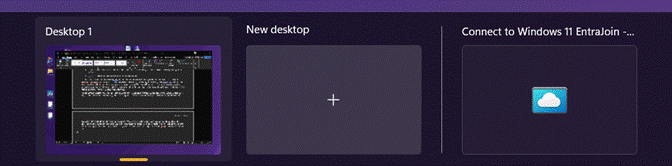
It can also integrate better into the physical device with Windows 365 Switch which sees you able to add a Windows 365 device to the Taskview and you can then use a touchpad gesture (4 finger swipe) and it will show the desktop of the Windows 365 device. A great way to work if you work on physical and cloud. You can also just click the taskview button on the taskbar too!
Lets take it up a notch and reuse our old hardware. Instead of putting it out to eWaste, lets be more ESG about this. Lets assume the hardware can support Windows 11. Configure the Windows 365 environment with Windows 365 Boot, this means that we can make a user who is logging on (using passwordless of course – all about security here!) will get booted straight into their Windows 365 device and not touch the local OS at all.
Also Microsoft announced last year their first purpose-built device to allow you to connect to your Windows 365 device from Windows 365 Link. Its Microsofts take on a thin client device. It’s a perfect fit for front of house or security or even those front line workers that need a quick access to check things on the go.
But, with all that said about the future of Windows being cloud, there are still some advantages of a traditional physical client for users to use daily:
- Ability to work “offline” with no internet access
- Complete control over hardware and software
- Business continuity (you can argue that Windows 365 can do this as long as people have access to a device to connect to the cloud device)
- Use cases for specific security or compliance requirements
Real world solutions that we can use Windows 365 for include:
- Contractors
- Short-term workers
- Secure workstations
- For IT admins carrying out admin work – configure conditional access to say you can only get to intune portal from Windows 365
- Continuity and DR
- Merger and Acquisitions
- Temporary workers
The important thing for anyone that is looking at Windows 365 that hasn’t is to use a specific use case to roll out to to get a feel for it. For us it was the need to allow overseas resource to access our systems. Sending out hardware and ConfigMgr configuration was a no go (plus there was a small worldwide pandemic too). So Virtual desktop ( and then Windows 365 ) was the best fit for us.
Will it be going forward. Time will tell as the technology stack marches on
Going Passwordless
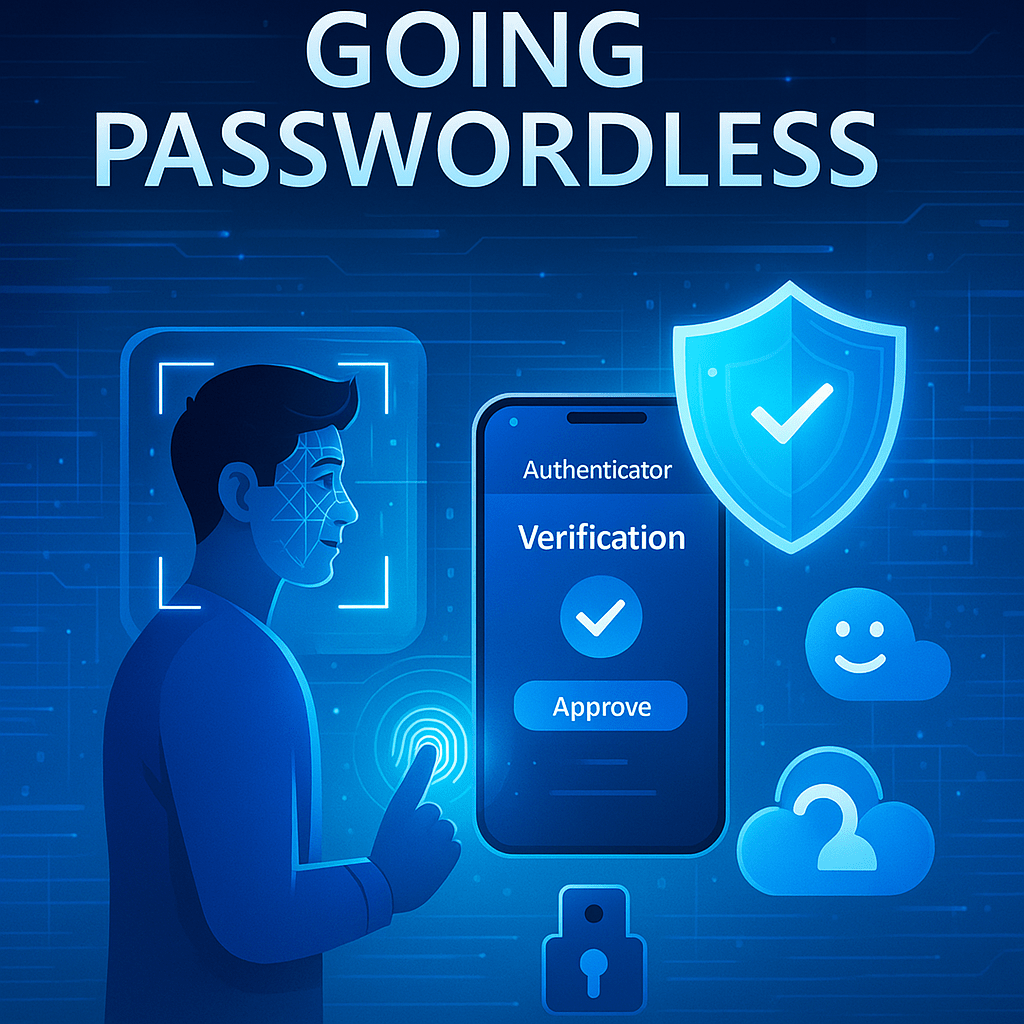
99% of all identity checks target passwords. Lets get rid of them. What else happens when we get rid of the passwords? Well a reduction in tickets from users that can’t remember the password. Win Win all round.
The boundary of the business has moved from a physical boundary to one that is the person. We need to now protect the identity ahead of the device as the identity is now the boundary of access. We secure the identity we can ensure access to our data and resources is secure. That isn’t to say that the device protection is not important, it is as there are still plenty of attack vectors against the device. Protection of both identity and device bolster each other.
How to do the Passwordless journey
- Enable Single Signon to SaaS applications
- Enable Single Signon to legacy onprem applications
- Implement Windows Hello for Business, which then becomes a smartcard for the sake of authentication
- Implemenation of TAP for new starters. No more getting the password to log on as them. IT admins should be no where near the device unless the user is.
To support the rollout of Windows Hello for Business, we need to implement Cloud Kerberos. This is an extension that receives a Kerberos ticket for a cloud device to enable them to access the onprem resources. Global admin and Domain admin rights are required to implement this. Once its working, the modern authentication now works both in Cloud and onprem.
Now we have people logging in with their face, finger or PIN we can look to remove passwords from the environment WOOHOO!. How to do this is a simple tickbox in Active Directory.
BASH! Passwordless.
Now, remember that Per-user Multi factor authentication is being deprecated. We need to move to modern multi factor using both Authentication policies (what a user is allowed to access) and authentication strengths (what a user is allowed to use). Here we want both of the policies to align to prevent any issues. Its advised to move towards Authentication strength and conditional access to secure that identity.
Now how to win the users over. This is the hard one as we need to convince them to use it and use it well. Consider this. Do people complain about getting a new mobile phone, logging onto it with your AppleID or Google account and its password and then immediately setting up FaceID? No they don’t and they are unaware that they are actually using passwordless on the device. Why can’t we get them to apply the same priniciple with a corporate device?
Then there are the objectionable users who stamp their feet and don’t want to install Microsoft Authenticator app as its “Work”. Well a few options here:
- Give them a work phone
- Configure a TAP to do the MFA setup in passwordless
- Consider using FIDO2 key
We can use Entra Governance here to use and manage the passwordless lifecycle. Passwordless isn’t just a new piece of tech to solve an age old issue, it’s a tech stack that we can use to secure the identity of the user to allow that secure access to corporate data and resource.
Temporary Access Password (TAP)
This enables another option for that user who doesn’t put work stuff on a personal mobile device or that new starter that hasn’t got to setup Microsoft Authenticator.
The TAP is used for MFA and device setup during Autopilot. It can be set for Multi-use or just a one-off single use.
So how about this? We get a user to setup Microsoft Authenticator using that TAP. From that point onwards, they can use the Microsoft Authenticator app to go and setup that device. This way we can configure the TAP to be single use as we know that they will be using Microsoft authenticator for all going forward authentication types. This can be seen as more secure.
Remember that they will expire according to the configuration up to a max expiration of 8 hours. Consider having as small a window as possible for the expiration time.
We also need to scope who can generate TAP for people so that there is no abuse of it.
What about the pitfalls of passwordless?
- Block password reset and SSPR – there is no need for it in the passwordless world
- Enable Web Sign immediately as this provides a number of benefits.
- Migrate from legacy Multi Factor and SSPR policies before your forced to in September 2025
Sit Fido, Sit
FIDO is another option in our passwordless adventure but it has a number of considerations:
- Cost – these things cost £100 upwards
- Management – people are going to loose them, break them or do an untold number of things
- Ports – Not enough USB-c ports on hardware to plug everything in
- Users don’t understand their importance
- Inclusion of biometrics
One way to encourage the use of FIDO is to say, if it has biometrics, is that it’s a fingerprint scanner. Plug it in, boot up, touch it, login.
FIDO is also considered Phish resistant along with Windows Hello for Business, cert based authentication and smartcard.
To recap:
- Make sure application support passwordless
- Migrate Legacy Multi Factor and SSPR
- Enable new workflows for passwordless
Robopack

SoftwareCentral Robopack is a powerful cloud-based module designed to streamline application packaging and deployment within Microsoft Intune and MECM environments. Integrated into SoftwareCentral, Robopack enables IT teams to convert traditional installer formats like MSI and EXE into Intune-ready packages such as IntuneWin and MSIX with just a few clicks allowing for rapid deployment and automated patch management that checks for updates every 15 to 30 minutes.
The session started off with an introduction to a new portal from Robopack which helps MSPs manage their client tenants – Software Central – Tenant Manager.
Then onwards to Robopack itself. With this product you have the ability to discover, patch and automate.
Firstly, discover:
- Scours Intune for app
- Both apps that are installed on device and in Intune, along with apps installed on devices that are not in Intune
- Scans x4 times a day
And with Patch & Automate:
- Ability to find update to an app and deploy to Intune and automatically supercede previous app or removal of apps.
- Ability to deploy from the vast Robopack app catalog (41,000 and counting)
- Ability to create custom app and have Robopack detect it, get all the details it needs to go and deploy
- Powershell App Deployment Toolkit supported
To continue reading day 2 Part two, i’ll update with a link once its published.







 Lilys Dad
Leave a reply to Workplace Ninja UK 2025 Day 2 Part 2 – Lilys Dad Cancel reply