

Wanting to limit who has access to Intune? Want to surface Cloud LAPS details in your own platform? Here is the low down
So, for access to Cloud LAPS passwords its via Intune. This would mean creating roles and adding people to have acces in Intune. One step further, why not surface it into you configuration database (CMDB for you ITIL people) so everything about the device is in one place and from a security footprint theres minimal people going into Intune.
That is the purpose behind this idea. So whats needed then?
- EntraID App Registration
- Client Secret or Certificate
- A way to get object ID
- The right Microsoft Graph API Endpoints
What are the API Endpoints?
There are two potential endpoints needed dependant on your use case. For ours, we only store the devices name in our CMDB so we will need to use both of the following. If you already know the device objectID then skip the first endpoint.
Remember when working with Microsoft Graph to always work towards the path of least privilage.
https://graph.microsoft.com/v1.0/devices
Documentation: https://learn.microsoft.com/en-us/graph/api/device-get?view=graph-rest-1.0&tabs=http
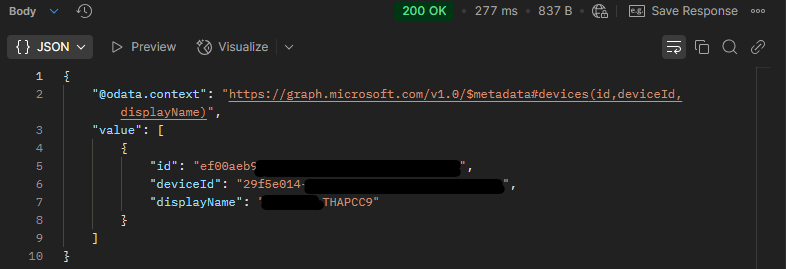
This either gets all devices, or if you add a filter you can specify a device name. In our example we will use the following API call:
To break down the query here:
$filter = displayname eq ‘DEVICENAME’
this is the query that the API Call and is asking for the device information for the DEVICENAME passed to it
$select = id, deviceid, displayname
We only want to return a subset of the data that could be returned to improve the performance of the API call. Here we return the:
id = The unique identifier for the device
DeviceID = Unique identifier set by Azure Device Registration Service at the time of registration
DisplayName = The display name for the device
When we send that API call, the following JSON response is received:
Permissions:
| Permission type | Least privileged permissions | Higher privileged permissions |
|---|---|---|
| Delegated (work or school account) | Device.Read.All | Directory.Read.All, Directory.ReadWrite.All |
| Delegated (personal Microsoft account) | Not supported. | Not supported. |
| Application | Device.Read.All | Device.ReadWrite.All, Directory.Read.All, Directory.ReadWrite.All |
The second API call we need is the actual call to get the Cloud LAPS password details
https://graph.microsoft.com/beta/directory/deviceLocalCredentials/<DeviceID>
Documentation: https://learn.microsoft.com/en-us/graph/api/devicelocalcredentialinfo-get?view=graph-rest-1.0
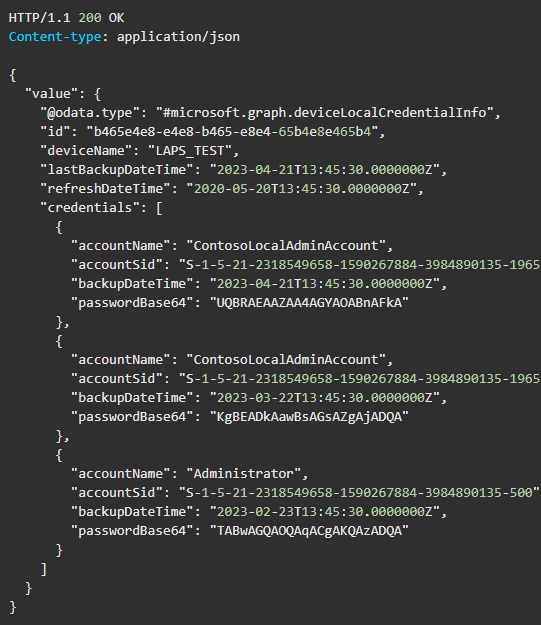
This will get details of the current and past 5 LAPS password for the provided device ID. To get the actual credential we need to add ?select=credentials. Without this, it will not display the credentials
Permissions:
| Permission Type | Least Privileged | Higher Privileges |
| Delegated (Work or School account) | DeviceLocalCredentials.ReadBasic.All | DeviceLocalCredential.ReadAll |
| Delegated (Personal Microsoft Account) | Not Supported | Not Supported |
| Application | DeviceLocalCredentials.ReadBasic.All | DeviceLocalCredentials.Read.All |
Note: To access the actual passwords on the device, done by including ?Select=credentials as part of the query parameters, the app must be assigned the DeviceLocalCredential.Read.All permission.DeviceLocalCredential.ReadBasic.All is insufficient.
So by using the API :https://graph.microsoft.com/beta/directory/deviceLocalCredentials/<DeviceID>?select=credentials
Should return the following JSON:
EntraID App Registration
To create the EntraID App Registration, you’ll need:
- EntraID tenant
- Account with rights to create an App Registration
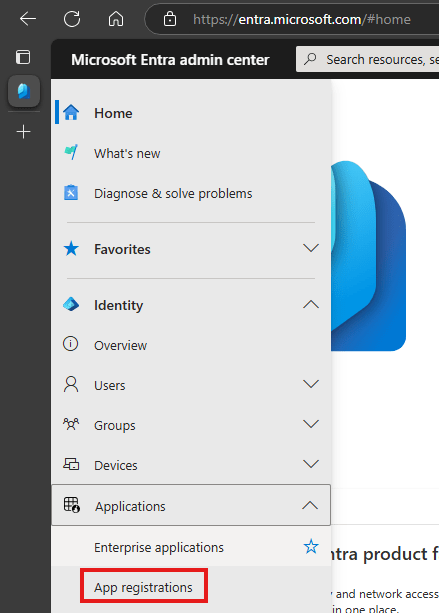
- Log onto EntraID [ entra.microsoft.com ]
- Click Identity > Applications > App Registrations
- Click New Registration

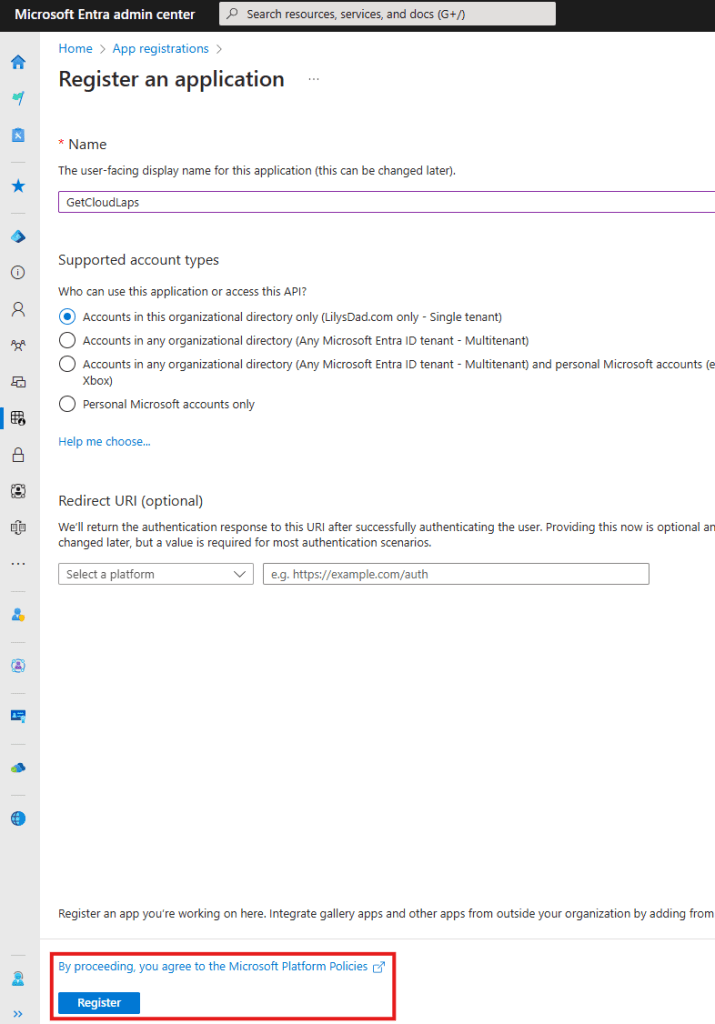
Provide a name and confirm the accounts to support. In our example:
- Name: GetCloudLAPS
- Account: Accounts in this orgranisational directory (Lilysdad.com Only – Single Tenant)
- Leave Redirect URL blankClick Register
App API Permissions
Refer to the documentation earlier to assign the correct MSGraph API permissions. Once you have added what you need (and approved with Global permissions you’ll end up with the following in your app
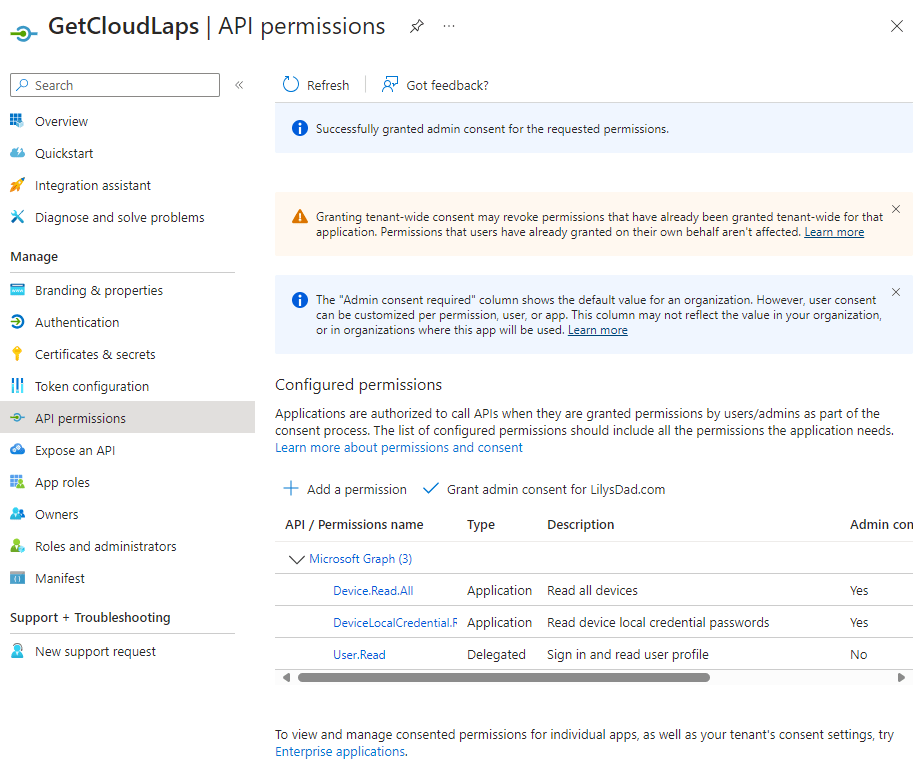
Client Secret
When using the app, we’ll need a client secret setup. Here is how:
Click Certficiates & Secret

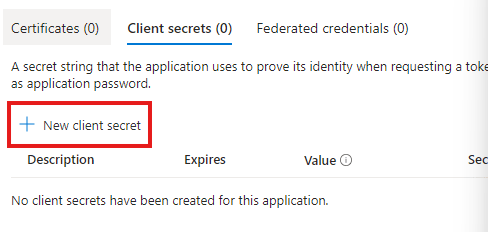
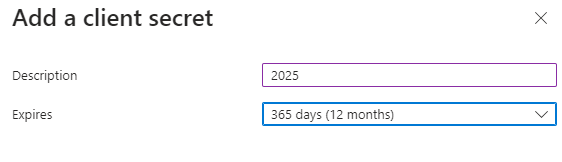
Add a description and expiration, then click Add
Take a copy of the secret value now as leaving the page you will never see it again
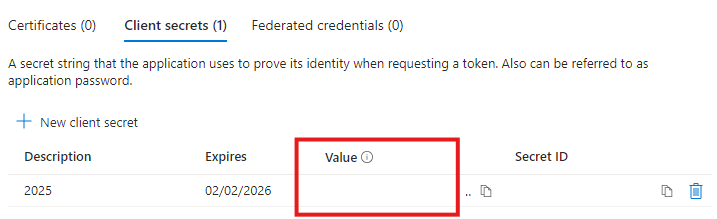
Now ensure you have a record of the following, we’ll need it for the API calls:
- Application ID
- Tenant ID
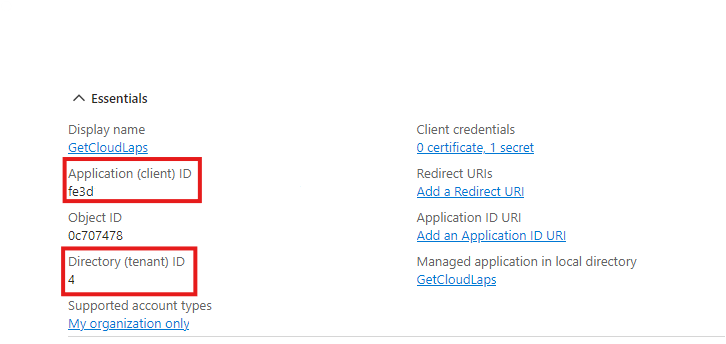
- Secret Value
We are now ready to make those calls.
What is needed to pass to Microsoft Graph API
The examples here were verified and screenshots taken from Postman.
Get Auth Token
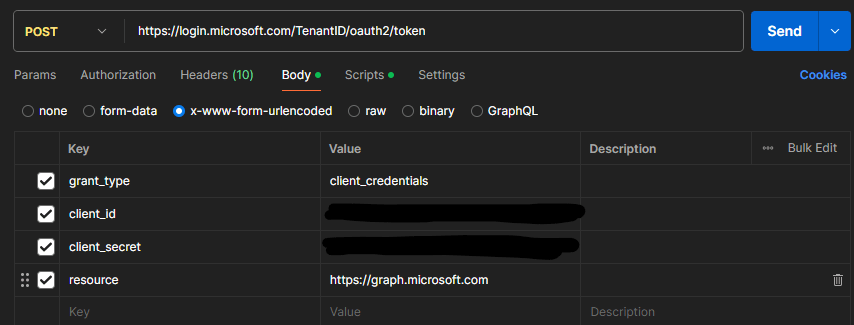
For any MS Graph calls, we need to obtain a valid authorisation token. We do this in the following way, using the App Registration details we have created above.
API: Post
URL: https://login.microsoft.com/<TenantID>/oauth2/token
Body: x-www-form-urlencoded:
grant_type – client_credentials
clientid – <clientid from App Registration>
client _secret – <client secret value from App Registration>
resource: https://graph.microsoft.com
You should get a http response 200 returned with the following JSON returned. We need that access_token for future calls.
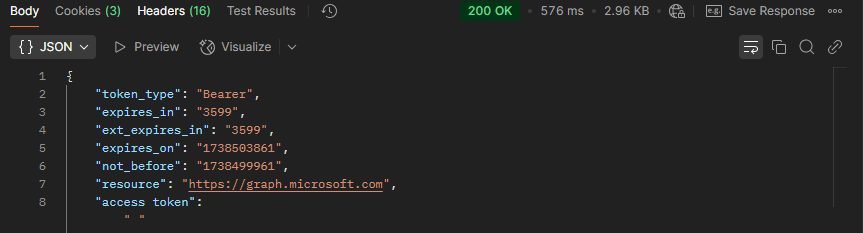
With access_token obtained and stored, we need to lookup the deviceID (if you already have this, skip to the next API call.
DeviceID lookup
API Call: GET
URL: https://graph.microsoft.com/v1.0/devices?
Params:
- $filter – displayName+eq+’DeviceName’
- $select – id,deviceId,displayName
Authorization: Bearer Token – taken from access_token
This then returns our JSON response that has the deviceId contained
Get deviceLocalCredentials
API: GET
URL: https://graph.microsoft.com/beta/directory/deviceLocalCredentials/<deviceId>
Parameters:
- select – credentials
Authorization: Bearer Token – taken from access_token
This returns our JSON response with a list of devicelocalcredentials. Simply grab the latest date and bingo! you have the device credentials.
Whats the results?
Once you have the last API call, and sorted by backupDate, simply get the most recent date and then extract passwordBase64.
You’ll need to then need to convert from passwordBase64 into plain text. Various ways of doing that:
c#
byte[] data=convert.FromBase64String(MyString);
string decodedstring = System.Text.Encoding.UTF8.GetString(data)
for more information on this check out blog.
Powershell
[(Text.Encoding)]::Utf8GetString([Convert]::FromBase64String('MyString'))
Conclusion
So this post has walked through how to use Microsoft Graph to show you the local device credentials to minimise who you need to grant the RBAC roles to in Microsoft Intune:
Or if you want to create your own Custom Roles:






 Lilys Dad
Leave a comment