
So todays fun brought the long set and often forgotten Proxy server settings in Windows 11.
One of our applications uses internet licence activation and on our Windows 11 platform this was not working. A discussion with the vendor and reviewing the logs on the device (and after replicating it myself) we narrowed it down to it being an issue with “the proxy server”.
Weird. We dont use a proxy server. If there is anything that needs to be routed a specific way we have a PAC file for that.
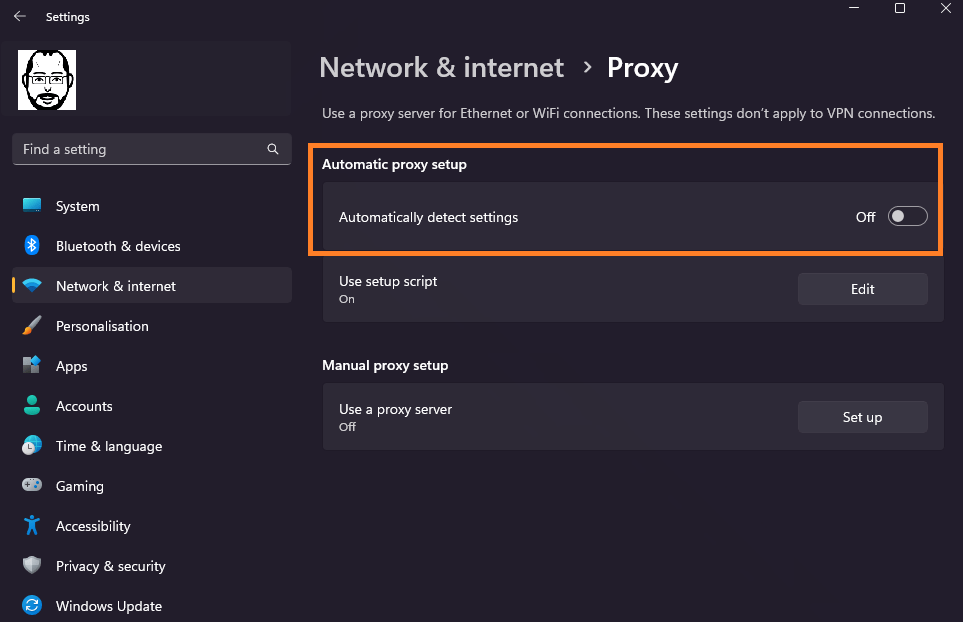
After replicating it working on Windows 10 and failing on Windows 11 it came down to the “Automatically detect proxy settings ” being set differently in Windows 11.
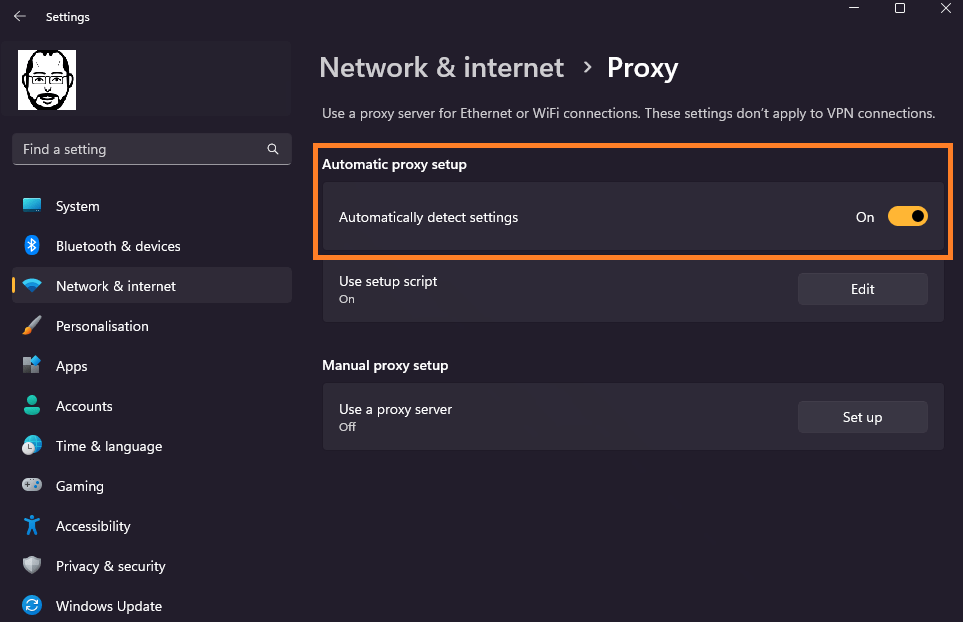
Windows 10 uses the Internet Settings to set this to on/off. Investigating this in Windows 11 took a while and alot of Google-fu and an argument with Copilot.
It would seem Microsoft do not surface this setting in the Intune settings catalog meaning that we have to use a custom OMA-URI using the Network CSP.
To help others out, and to prevent them going around in circles heres what i did:
At first, to see if it really was this setting I ran a manual powershell script to update two registry keys. I did try just switching the toggle off, but it would reset as soon as you left the settings page. Thats annoying.
Anyway, the powershell script:
$regPath = "HKLM:\Software\Microsoft\Windows\CurrentVersion\Internet Settings\Connections"
$regPath2 = "HKLM:\Software\Microsoft\Windows\CurrentVersion\Internet Settings"
$settings = Get-ItemProperty -Path $regPath -Name DefaultConnectionSettings
$bytes = $settings.DefaultConnectionSettings

# Clear the 0x08 bit (Automatically detect settings)
$bytes[8] = $bytes[8] -band 0xF7

# Write it back
Set-ItemProperty -Path $regPath -Name DefaultConnectionSettings -Value $bytes


Set-ItemProperty -Path $regPath2 -Name AutoDetect -Value 0 -Type DWord
Running the above and then rebooting set the toggle off. I can go and test. And it worked we could activate the product!
Right, how to do this in the environment. Do we deploy this out as a platform script? Win32 app? Remediation? All good options, but we’ll probably forget what and where it was. The best thing is to use the Intune configuration policy. As the setting isnt exposed, we’ll go and create a custom policy.
- Open Intune portal
- Navigate to Devices > Windows > Configuration
- Create > new policy
- Platform: Windows 10 and later
- Profile: Template
- Select Custom
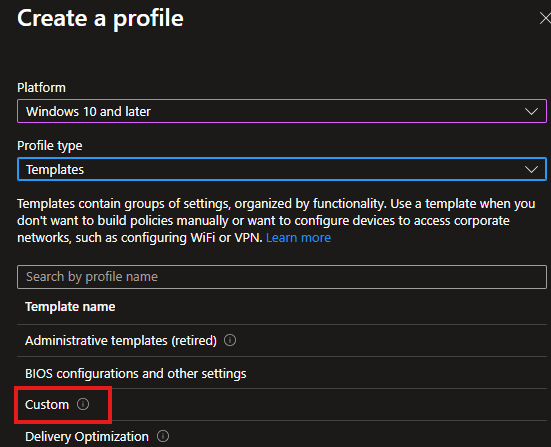
- Click Create
- Give the policy a name and a description
- Click Add to add the custom OMA-URI
- Give it a Name and a description
- OMA-URI: ./Vendor/MSFT/NetworkProxy/AutoDetect
- Data Type: int
- Value 0
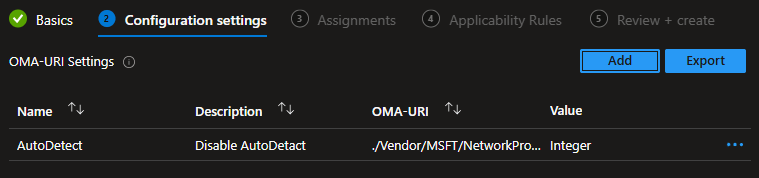
- Click Next
- Assign the policy to a group
- Under applicability rules, this can be skipped unless you want to narrow the scope further. Click Next
- Review and click create
Once the policy has been saved, run a sync on the devices and after a while the setting should show in Settings > Network & Internet > Proxy.
To aid with the troubleshooting, check the event log Applications and Services Logs > Microsoft > Windows > DeviceManagement-Enterprise-Diagnostics-Provider > Admin






 Lilys Dad
Leave a comment