

The ability to override location on Windows 365 devices
We need to ensure that our Virtual Desktops show the correct location for an individual so that Operator Connect for India can work correctly. At the moment, when performing a geo-location check for a device based in the Microsoft Central India datacenter shows as being in London or Netherlands.
How is this possible you may ask? Our web filtering is handled via Palo Alto Prisma and we have two gateways. As you may already be guessing, the gateways are London and Netherlands.
To get location services working and providing an override to Windows 365:
- Windows 11 Enterprise
- Enable Location Services via policy
- On physical device enable “Allow Location Override”

- Ensure you are using Windows App client to connect to Windows 365
- Verify Windows App is set to pass Location Services:
- Go to Settings > Apps > Installed Apps > Windows App > Advanced Options > Scroll down to App Permissions and Location is “On”
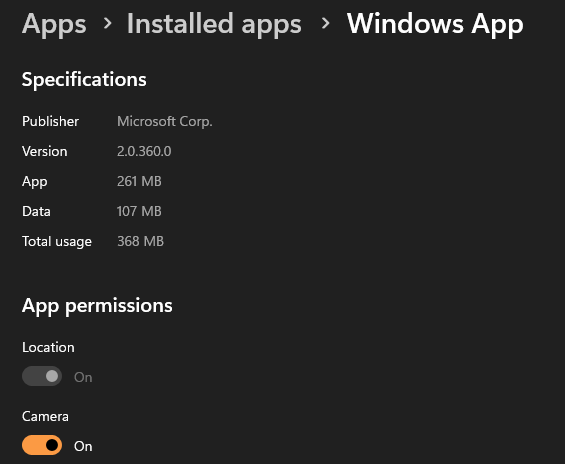
Open your Windows 365 device. To verify the location pass through:
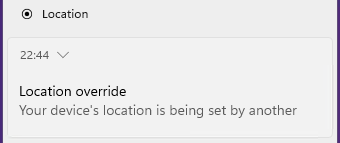
- When you first connect you’ll receive a toast notification
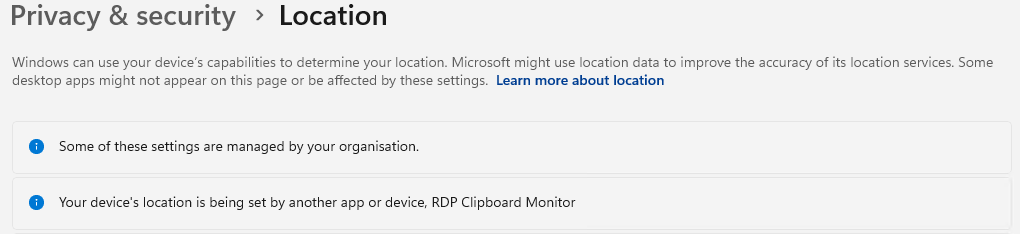
- Checking Settings > Privacy > Location you’ll receive a prompt to say its being set by another app or device.
And finally you can use the PowerShell script below
Add-Type -AssemblyName System.Device
$GeoCoordinateWatcher = New-Object system.Device.Location.GeoCoordinateWatcher

$GeoCoordinateWatcher.Start()
Start-Sleep -Milliseconds 500
If ($GeoCoordinateWatcher.Permission -eq "Granted")
{
While ($GeoCoordinateWatcher.Status -ne "Ready")
{
Start-Sleep -Milliseconds 500
}

$GeoCoordinateWatcher.Position.Location | FL Latitude, Longitude
}
else
{
Write-Output "Desktop apps aren't allowed to access your location. Please enable access."
}





 Lilys Dad
Leave a comment